A ministry changes over time: people come and go, someone takes on a new role, the team pauses for a season. You adjust all that in seconds.
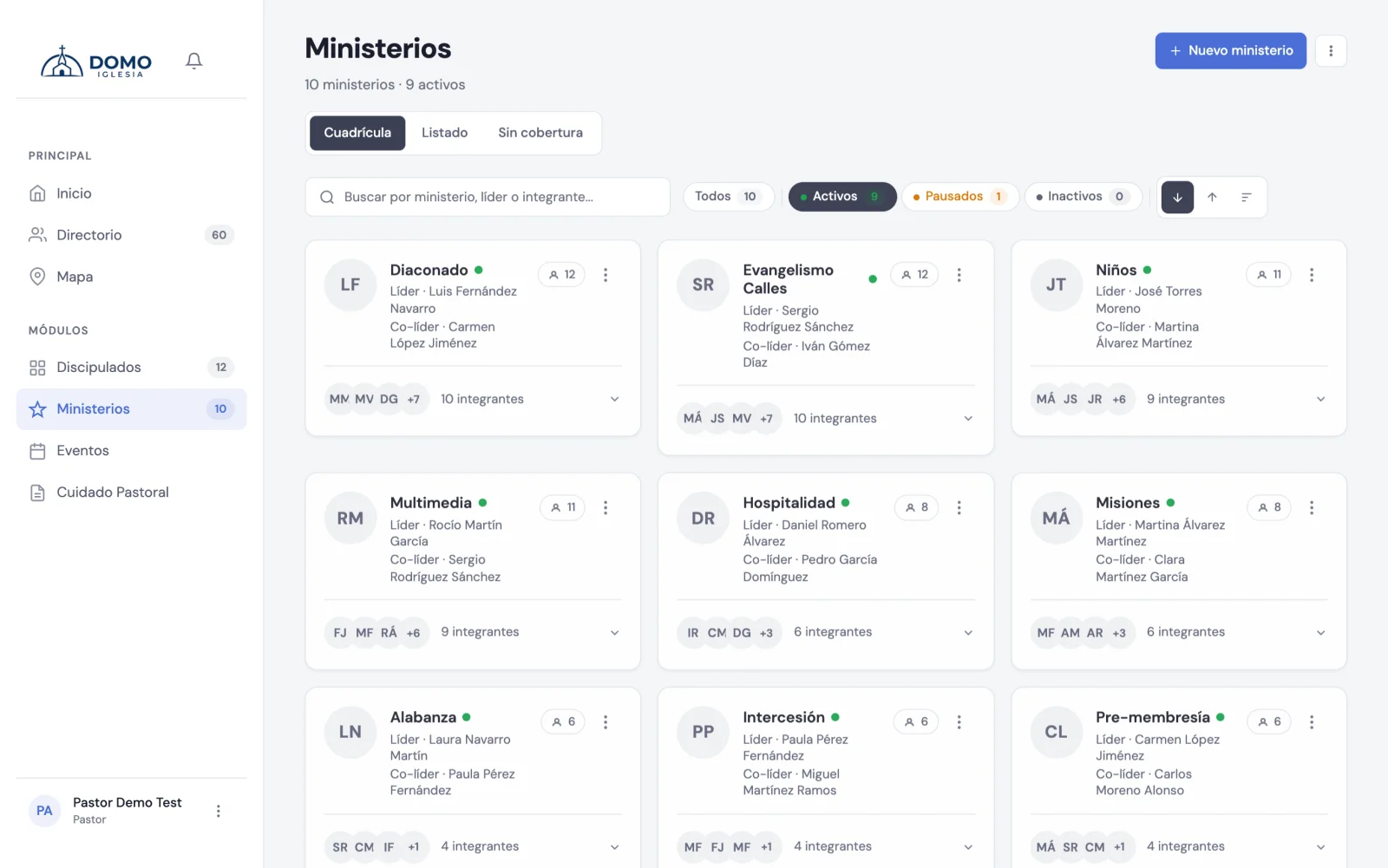
Edit the ministry
- Go to Ministries and open the card's menu.
- Click Edit.
- Change what you need and click Save changes.
Members and their roles
Inside the edit form, each member appears in a row with a Role (optional) field: type their function there (for example, "guitar", "sound" or "hosting").
To remove someone from the team, use the Remove button (the ✕) next to their name.
The ministry's status
Each ministry has a status, shown as a colored dot on its card:
- 🟢 Active — running normally.
- 🟡 Paused — on hold for a season.
- ⚪ Inactive — out of use for now.
Changing the status to paused or inactive is better than deleting: you keep the team and its history for when it becomes active again.
A co-leader for the team
If your church has it enabled (in Settings → Settings → Ministries, turn on "Enable co-leader"), each ministry can have, besides the leader, a co-leader: someone who shares in managing the team. It's assigned the same way as the leader, by searching for the person by name in the ministry's edit form, and can be removed at any time.
Target size
If your church has it enabled, you can set a target size: the number of members you're aiming for. On the card you'll see the ratio, for example 5 / 8, to know at a glance how many more you need.
Who isn't serving
The Without coverage view (for pastors and residents) shows you the members and pre-members who aren't part of any active ministry. It's the best way to spot who to invite to serve.