Taking attendance is what gives life to Domo's pastoral follow-up: from who attends (and who doesn't), Domo helps you know who to walk alongside. And it's very fast.
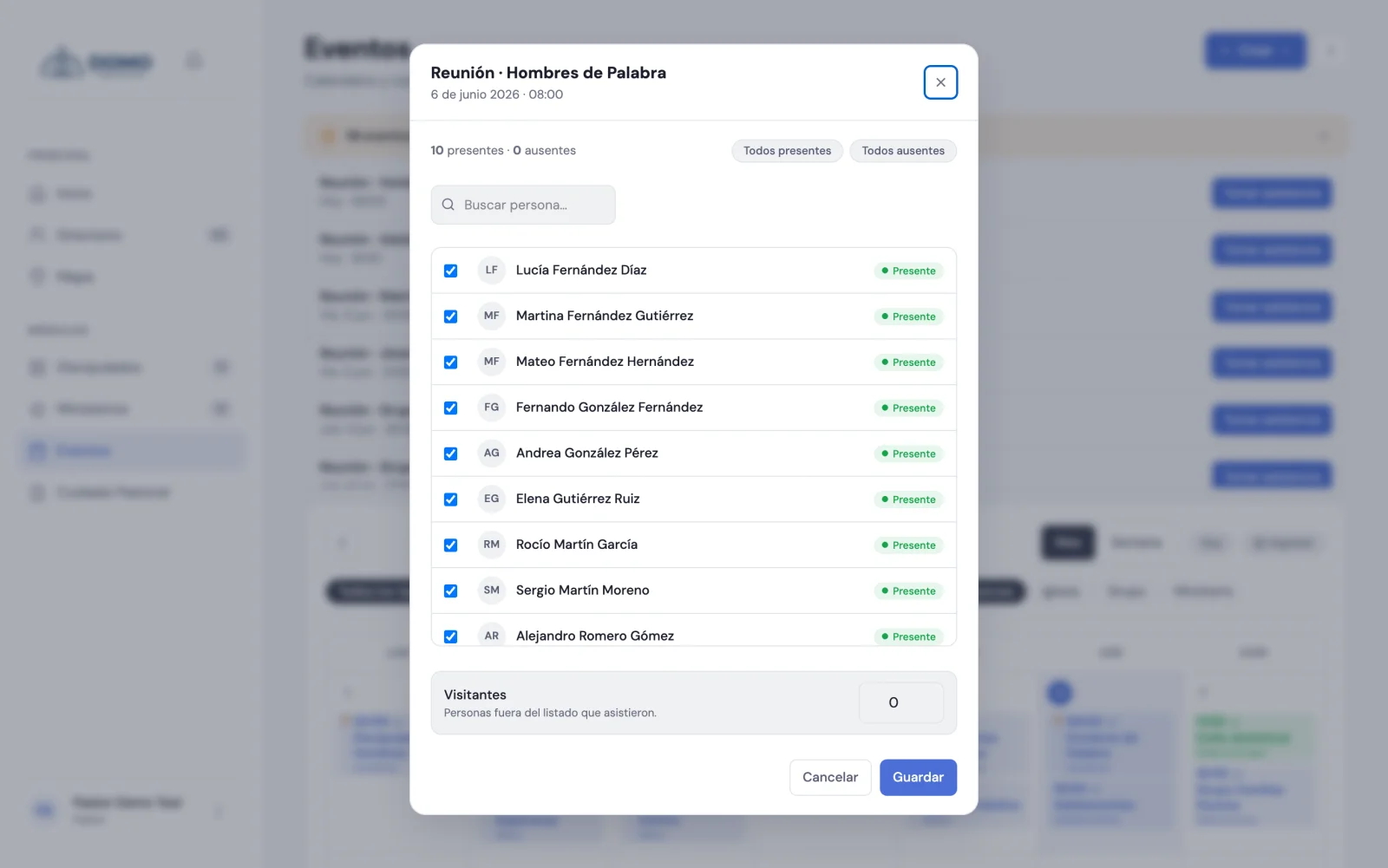
Record an event's attendance
- Open the event that requires attendance. You'll find it in the Events calendar: the ones that don't have attendance recorded yet show a small clock.
- Click Take attendance.
- The list of people opens. Everyone shows as present by default: just uncheck those who were absent.
- If you need to, use All present or All absent to start from scratch, and the search box to find someone quickly.
- If there were visitors, note how many.
- Click Save.
Done. The event is marked as held and the absences are recorded.
To take attendance you need the matching permission. The Pastor, the Resident and the Office have it, and so do leaders and co-leaders over their own groups and ministries.
It's taken on the day of the event, not before
Attendance is recorded on the day of the event or after, never in advance: a list filled in beforehand isn't attendance, and it would also mark the event as held.
So on a future event the record doesn't offer Take attendance, but the notice "Attendance is recorded on the day of the event". In groups, a future meeting shows up as later on and doesn't open the list; today's does.
Did you record attendance in advance before this existed? That future event's record shows Attendance was recorded in advance with the Undo record button: it deletes the absences, the total and the visitors, and the event goes back to pending so it can be taken properly that day. It only works on future events; the attendance of an event that already took place is edited, not undone.
Who shows up in the list
It depends on the event's scope:
- In a worship service or a whole-church event, the active people whose stage counts for attendance appear. By default those are visitors, pre-members and active members; your church can change that in Settings → Modules → Events (see The lists in each module).
- In a group or ministry meeting, all its members appear, including minors and anyone in Inactive member: there the list is made up of whoever someone signed up. Only departures (transferred, excommunicated and deceased) are left out.
Anyone in the Inactive member stage doesn't appear in the service list, doesn't add to its expected total and their absences don't trigger follow-up: it's the stage for someone who has already said they're not coming for now. If they're still signed up in a group or ministry, they do show up there; if they no longer take part, remove them from that group. We cover it in pastoral stages.
Attendance in groups
In your Discipleships you can also take attendance: each group has its Take attendance button, made for the leader to record who came to the meeting.
If you lead or co-lead a group, its meetings from the last 7 days that have already started and are still unrecorded show up on Home, under Your tasks → To record, next to the pending services if you manage the church's attendance. A group with no set day doesn't schedule meetings: each meeting is recorded from Take attendance.
And to look back — which meetings there were and who's been missing — you have the Attendance tab in Discipleships, which opens with just leading the group.
Something important
Domo has no self check-in (a person doesn't sign themselves in): a leader or someone on the team always takes attendance. That way the data stays in the care of whoever walks with the group.
Next step
Once you take attendance regularly, Domo starts telling you who to follow up with. We cover it next.