Creating the event is only the start. When something changes, Domo lets you edit it, cancel it or take the calendar as a PDF.
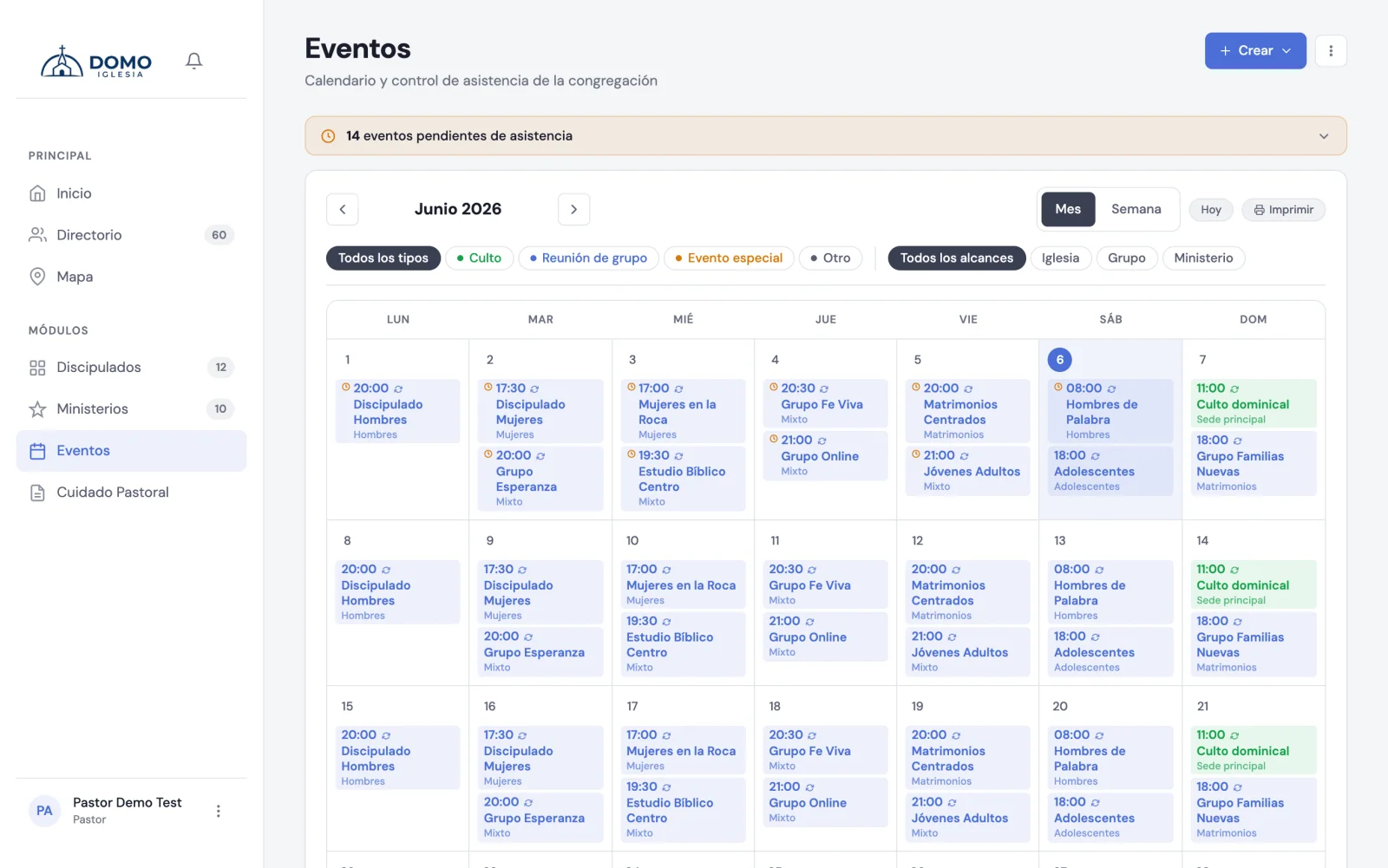
Open and manage an event
Click an event on the calendar to see its details. There you can:
- Record attendance (or View attendance, if you already took it). The details show "Attendance recorded · X of Y" and you can See absentees.
- In the menu (the three dots): Edit or Cancel event.
Cancel (without losing anything)
When you Cancel event, Domo makes it clear: "The event will be marked as canceled. Registered people and attendance records are kept."
In other words, canceling doesn't delete the attendance you already recorded. It's for announcing that there was no meeting that day, without losing the history.
Delete
Delete is always in the three-dot menu: you no longer have to cancel first. One click is enough.
The one exception is an event that already happened and has attendance recorded. There Domo tells you so and asks you to confirm with Delete anyway, because that attendance feeds pastoral follow-up and deleting it takes the follow-up with it.
Edit an event in a series
If the event is part of a recurring series, when you edit it you'll see a notice and the option Edit the whole series →. And if you delete it, you choose the scope:
- Only this day
- This and all following
- The whole series
Finding events
On the calendar you can filter by All types and All scopes (Church, Group, Ministry) and toggle between Month and Week. The Today button brings you back to the current month.
Exporting the calendar as PDF
Click Export PDF (it's in the header menu and also as a calendar pill). A box opens where you choose exactly what comes out:
- Month — whichever month you want, not just the one you're looking at.
- Event types — check the ones you care about.
- Scopes — Church, Group, Ministry.
It arrives preloaded with the filters you have on screen, so often you just have to confirm. If you check nothing, the whole month comes out. The PDF states below the title what was filtered, so whoever receives it doesn't think something is missing.
Events marked "pastoral team only" never make it into the PDF of someone who can't see them.